

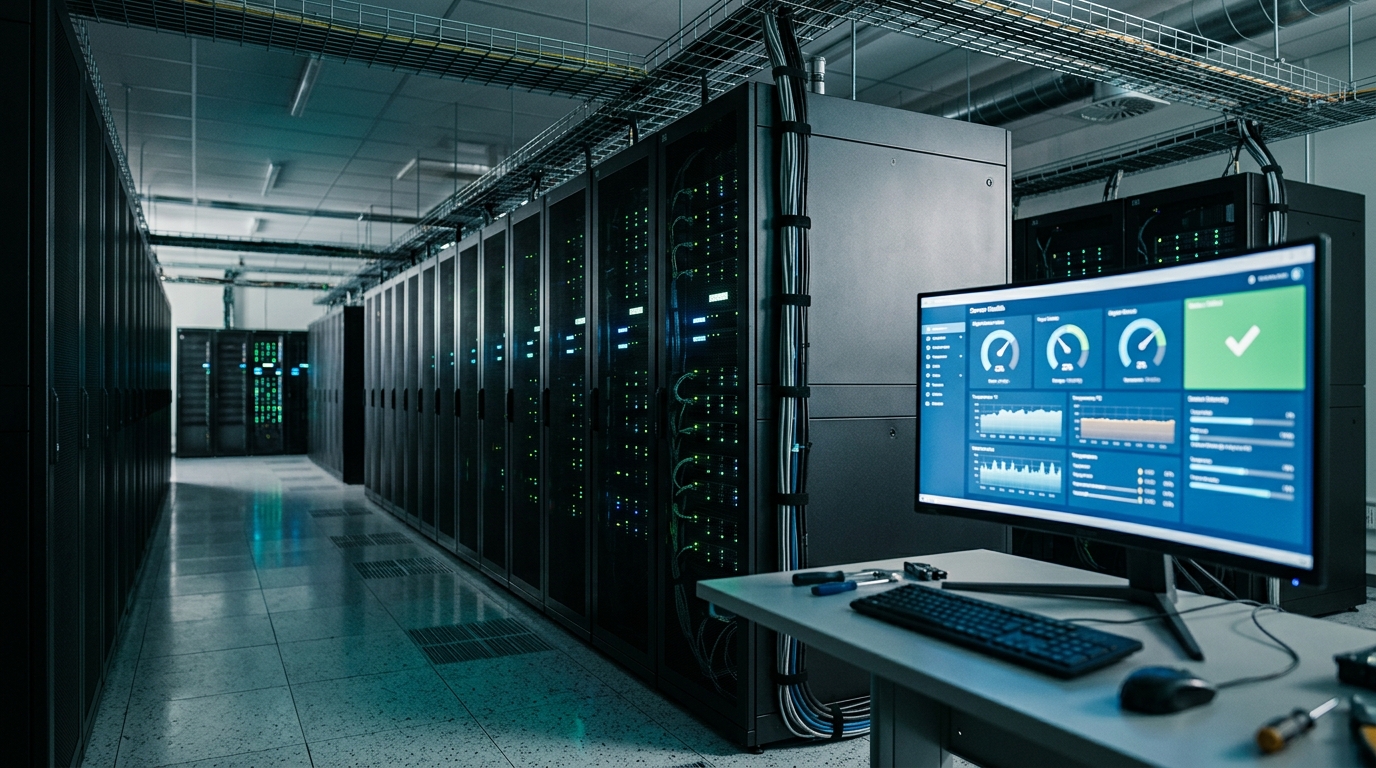
If you have searched for “active system console,” you have probably run into a mix of results that seem unrelated. Some pages talk about server hardware, others about enterprise monitoring tools, and a few are about gaming or office furniture. The reason is simple: the phrase is used by more than one product. This guide explains the meaning that most people are looking for, which is the Intel® Active System Console, and then covers the other uses so you can quickly tell which one applies to you.
What Is the Active System Console?

The Intel® Active System Console, often shortened to ASC or IASC, is a lightweight web application that gives you a dashboard view of the server hardware it runs on. Intel’s own user guide describes it as a tool for monitoring server health ahead of problems, configuring the server remotely, tracking hardware assets, sending alerts, and creating asset reports. It was part of the Intel® System Management Software family, and Intel stated that it came with almost all Intel server products at no extra charge.
In plain terms, it lets an administrator look at a server’s physical condition from a web browser. Instead of opening the case to see which memory modules or drives are installed, you can read that information on screen. Instead of waiting for a fan to fail and cause an outage, you can set up an alert that warns you early.
How the Console Gets Its Information
The console is built around the baseboard management controller, usually called the BMC. This is a small, separate controller on the server board that watches hardware sensors and keeps working even when the operating system is not running. It communicates through standards such as IPMI, which is designed to let you manage a system remotely even if the operating system is down.
ASC reads data from the BMC and presents it in a friendly layout. That data includes sensor readings, field replaceable unit (FRU) details, and the System Event Log (SEL), which is the record of hardware events the server has noticed. Because the console talks to the BMC, it can also change some BMC settings, which makes it useful for both watching and configuring a server.
Main Features You Can Use

The first screen you see after logging in is the dashboard. It shows the overall health of the server along with the state of the chassis, storage, cooling, processor, memory, and power. According to the guide, this page refreshes every ten minutes, so it is a good overview but not a live second-by-second monitor.
From the dashboard you can move into more detailed pages. The summary page lists board, BIOS, and firmware details, and the processor and memory pages show speed, size, and the health of each installed component. Cooling and voltage pages display fan speeds and power readings against their warning and critical limits. The chassis page reports the state of the chassis intrusion sensor and lets you switch on the identification LED, which helps you find one physical server among many in a rack. The storage page lists drives and logical volumes, and it can raise a warning when disk space passes a set threshold.
The events page is where you review the server’s log. Each entry shows a description, a severity level, a status of open or closed, and a time stamp. You can filter by severity, sort any column, close events, or export them. Be careful with deletion, because the guide warns that deleting events from the console’s database cannot be undone, and that you must delete all events or none. Exporting a report first is the safer habit.
Configuration, Alerts, and Reports
Beyond monitoring, the console includes a configuration area that works with the BMC. You can add or edit BMC users and give them administrator, operator, or user privileges. You can change the BMC network setup by choosing a static address or DHCP. You can also change Serial Over LAN settings, which let you see the boot screen of a server over the network until the operating system takes over.
Alerting is one of the most practical parts. The console can send SNMP traps for events such as a fan failure or a memory error, and it can send email alerts through a basic or an advanced profile. The basic option offers one profile that sends every hardware alert and another that sends only critical ones. The advanced option lets you build your own profiles with custom recipients, subject lines, and a chosen set of alerts. Both email options need a mail server on your network.
Other settings let you choose the boot order for the next restart and decide what the server does after a power loss. A Node Manager page supports power policies for systems that offer Intel® Dynamic Power Node Manager. Finally, the reports section can create reports on asset information, all events, critical events, sensor values, and BMC settings, and it can save them as HTML, XML, or CSV files.
How to Open the Console
On a server where it is installed, the console runs a web server on TCP port 9393. From another computer you open a browser and go to the server’s IP address followed by that port and the path /asc, using a secure https connection. During installation you are asked to replace the default password for the admin account, and Intel recommends choosing a strong one.
Most browsers will show a certificate warning at first. That happens because the console uses a self-signed certificate to keep deployment costs low. You can accept it if you are sure the connection really goes to your own server, or you can install a certificate from a public authority by replacing the certificate and key files, a process the guide explains for both Windows and Linux. If you cannot reach the page remotely but the server responds to a ping, a firewall is the most likely cause, and port 9393 is the one to allow.
Security Tips for Administrators

Because the console can change server settings, treat it like any other administrative tool. Intel’s guidance includes using strong passwords for both console and BMC accounts, keeping the number of administrator accounts small, and limiting which remote computers can connect. The console has role-based access, with administrators who can configure the server and users with read-only access. It also records logins, logouts, and failed login attempts as events, so reviewing the event table from time to time can reveal misuse.
If the console is reachable from the internet, Intel recommends placing it in a monitored network zone rather than on a general internal network. It is also wise to use trusted computers, close the browser when you finish, and avoid browsing unknown sites in other tabs while you are logged in.
Troubleshooting Common Problems
If the console stops responding or will not accept a correct password, the usual cause is that one of its background services is stuck or the BMC has stopped answering. The guide’s fix is to restart the essential services. On Windows these are the IASCServiceManager and Appcore services, and on Linux they include lighttpd, ascpolicy, and Appcore. Restarting them in order solves most of these cases.
Community reports show a few other problems. One user installed a version of the console and saw a login window that did nothing after sign-in. Another tried to run it on Windows Server 2008 R2 Hyper-V Core and could not get it to load. In those threads, Intel staff often pointed people to the BMC web console as an alternative, which is a sign that the console does not work in every environment.
Is the Intel Active System Console Still Available?
This is an important point that many articles skip. In a community reply, an Intel representative stated that the software had been removed from Intel’s website with no replacement planned, and suggested the BMC web console as the easiest way to manage an Intel server. The same reply mentioned a paid option, Intel Server Management Software. In another thread, Intel staff pointed to Intel® Multi-Server Manager and the Intel SNMP subagent for monitoring needs. Intel’s support pages also list many of its server boards as discontinued, so support for older systems may be limited.
For a modern setup, the practical choice is to configure the integrated BMC web console and, if you need remote keyboard, video, and mouse access, the Intel Remote Management Module 4, which Intel describes as a card that enables remote KVM and media redirection from the built-in web console.
Other Products Called Active System Console or Active Console
The same words appear elsewhere, so it helps to know the difference. Skyhigh Security’s documentation for its on-premises Secure Web Gateway hardware describes an Active System Console used to retrieve debugging information about the appliance. You turn it on from an SSH session with the asc-enable command, create an administrator password, and then open it in a browser on port 9393 of the appliance. The same page recommends using the Remote Management Module for this information when possible, and the console can be turned off with asc-disable.
Separately, ITRS Geneos has a product called Active Console. It is a monitoring interface where you work in saved workspaces, connect to Gateways, and build your own dashboards using Active Dashboard. It is a different product from Intel’s tool.
On IBM z/OS mainframes, the “system console” is a special console attached to the processor. IBM’s documentation explains that it can issue commands only when placed in problem determination mode, and that the VARY CN command is used to activate it. Outside of IT, a few product pages use the words for height-adjustable control room desks and for active gaming consoles, which have nothing to do with server management.
Final Thoughts
The active system console is best known as Intel’s browser-based dashboard for watching and configuring server hardware through the BMC. It offers health views, event logs, alerts, and reports, and it is simple enough for small teams to use without long training. Its limits are just as important to understand: it is tied to specific Intel platforms, it is no longer offered on Intel’s website, and the BMC web console is now the more dependable option. Before you search for a download, confirm which product your system actually uses, and check the documentation for your exact hardware.
Disclaimer: This article is for general information only and is not professional IT, security, or engineering advice. Product details, software availability, and support status can change, and older documentation may not match your hardware or software version. Always check the official documentation from your vendor and test configuration changes in a safe environment before applying them to production systems. The author and publisher are not responsible for any loss or damage that results from using this information.
Explore More
Trideltathon: The Complete Guide to the Oldest Pool Triathlon in the Country

I’m Muhammad Ubaid, founder of YBR Magazine. I research and write detailed guides on America’s National Parks — covering entry fees, permits, best times to visit, and planning tips — using official NPS sources and up-to-date information.