


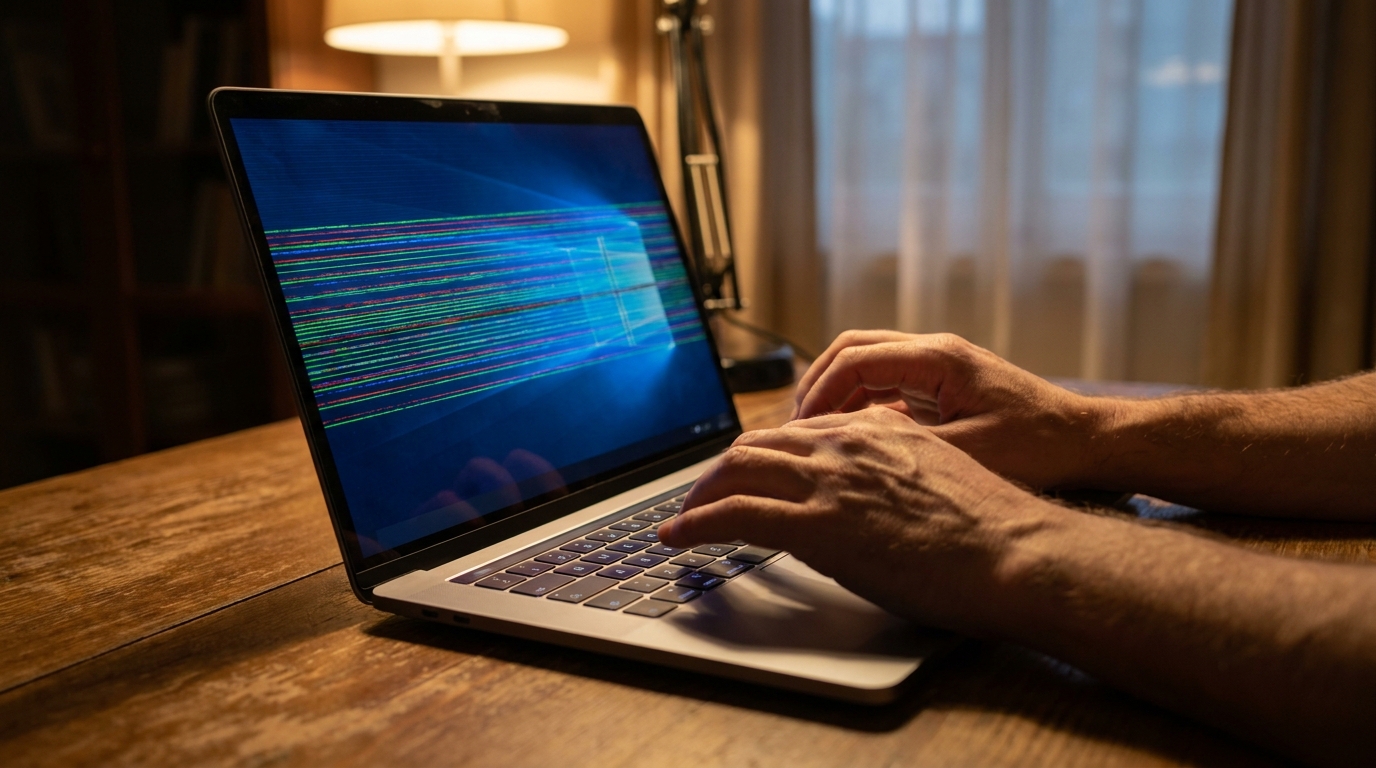
Few things are more worrying than opening your Lenovo laptop and seeing the screen flicker or fill with thin horizontal lines. It can happen on any model, including IdeaPad, ThinkPad, Legion, Yoga, and Flex, and it can appear suddenly or slowly get worse over several days. The good news is that this problem does not always mean your laptop is finished. Many cases come from software or settings that you can fix at home, while others point to a hardware fault that needs a repair. This guide explains how to tell the difference and what to do in each situation.
Why Does a Lenovo Laptop Screen Flicker or Show Horizontal Lines?
Your laptop screen depends on a chain of parts working together. The graphics processor creates the image, the display driver tells it how to do that, a thin cable carries the signal to the screen, and the panel itself turns the signal into light and color. A problem at any point in this chain can produce flickering or lines, so the first job is to find out where the fault is.
Software problems are the most common and the easiest to fix. An outdated, corrupted, or badly installed graphics driver can cause flickering, especially after a Windows update. Wrong display settings, such as an unsupported refresh rate, can do the same. Some apps also conflict with the display system, and this happens most often with screen recorders, overlay tools, and certain browsers that use hardware acceleration.
Hardware problems tend to be more serious. The display cable inside the laptop can loosen or wear out, particularly near the hinge, which bends every time you open and close the lid. The screen panel can also fail, either from a manufacturing fault, a hard knock, or pressure on the lid while the laptop is in a bag. In less common cases, the graphics chip or motherboard is the source of the problem, and this is more likely if the laptop has overheated many times.
First, Find Out If the Problem Is Software or Hardware

Before trying any fix, it helps to run a few quick tests, because they save time and prevent unnecessary repairs.
The most useful test is to connect your Lenovo laptop to an external monitor or TV using an HDMI or USB-C cable. If the external screen looks perfectly clean while the laptop screen still shows lines, the graphics chip is probably working and the fault is likely in the laptop’s own screen or its cable. If the external screen shows the same flickering or lines, the cause is more likely the graphics driver, the graphics hardware, or the motherboard.
The second test is to take a screenshot while the lines are visible and then look at that screenshot on another device. If the screenshot looks clean, the operating system is producing a healthy image, and the problem lies further down the chain, in the cable or the panel. If the lines appear in the screenshot, the problem is in the software or graphics processing.
The third test is to enter the BIOS or UEFI setup screen. On many Lenovo laptops you can do this by pressing F2, F1, or Fn+F2 while the laptop starts, and some models have a small Novo button or pinhole that opens a startup menu. The BIOS runs before Windows loads, so it does not use your Windows graphics driver at all. If the lines or flickering appear there too, the cause is almost certainly hardware, and no Windows setting will fix it.
Easy Software Fixes to Try First
If your tests suggest a software problem, or if you are still unsure, start with the simplest solutions and move toward the more involved ones.
Restart the graphics driver and the laptop. On Windows, pressing Ctrl + Windows key + Shift + B together resets the graphics driver, and you may hear a short beep while the screen briefly goes dark. If that clears the flicker, the issue may be a temporary driver glitch. A full restart is also worth trying. If your laptop has Fast Startup turned on, choose Restart rather than Shut down, because a restart clears more of the system’s temporary state.
Check the refresh rate. Open Settings, go to System, then Display, then Advanced display, and look at the refresh rate. Choose a different available option, such as 60 Hz, and see whether the flickering stops. This matters most on gaming models like Legion, where a high refresh rate or a change in the graphics mode can sometimes trigger display trouble.
Update or reinstall the graphics driver. For the best results, get drivers from Lenovo’s support website or through the Lenovo Vantage app, because those versions are matched to your specific model. You can also open Device Manager, expand Display adapters, right-click your graphics adapter, and choose Update driver. If the problem started right after an update, you can use the Roll Back Driver option in the same menu, which returns the laptop to the previous version. If the driver seems corrupted, uninstall it, restart the laptop, and let Windows or Lenovo Vantage install a fresh copy.
Look at your BIOS and system updates. Lenovo releases BIOS and firmware updates that sometimes include display and graphics fixes. Installing them through Lenovo Vantage or the official support page for your model is a safe way to make sure your laptop is running its most stable version. Keep the laptop plugged in during this process and do not turn it off while the update runs.
Test in Safe Mode. Safe Mode loads Windows with a very basic display driver. If the flickering disappears there, some installed driver or program is causing the trouble, which points back to a software cause. If the lines remain even in Safe Mode, a hardware fault becomes much more likely.
Turn off hardware acceleration and remove conflicting apps. If the flicker only shows up inside a certain browser or program, look for a hardware acceleration option in that program’s settings and switch it off. Also consider uninstalling recently added screen tools or overlay software to see whether the flicker stops.
Checking Power and Graphics Switching
Many Lenovo laptops, especially those with both Intel or AMD integrated graphics and a dedicated NVIDIA or AMD card, switch between the two graphics options to save battery. Sometimes this switching does not go smoothly, and the result is a brief flicker. You can test this by opening your graphics control panel or the NVIDIA Control Panel and setting a specific graphics processor for the apps that flicker. Some laptops also let you change the graphics mode in the BIOS or in Lenovo Vantage, and trying a different mode can reveal whether switching is the cause.
Power settings can matter as well. If the flickering happens mostly on battery power, try setting the power plan to Balanced or Best performance and see whether the behavior changes. A laptop that flickers only when unplugged may have a battery or power delivery issue in addition to, or instead of, a screen issue.
Hardware Clues That Point to a Physical Problem
If the software steps make no difference, pay attention to how the flickering behaves, because it often shows what is wrong.
Slowly open and close the lid while watching the screen. If the lines or flickering change, get worse, or disappear at certain angles, the display cable near the hinge is a strong suspect. This is one of the most common reasons for flickering on laptops that are a few years old, because the cable is flexed thousands of times over its life.
Gently press around the edges of the screen frame and the area near the hinges. If the image changes when you apply light pressure, there may be a loose cable connection or an internal panel problem. Do not press hard, since this can crack the screen.
Look at the pattern of the lines. Thin colored horizontal lines that stay in place, or a section of the screen that stays black or shows strange colors, often mean the panel itself is failing. Random flickering with no fixed pattern that also appears on an external monitor is more often a graphics or motherboard problem. If you also notice unusual heat, loud fans, or sudden shutdowns, overheating may be damaging components, and cleaning the fans and vents or having a technician check the cooling system could be part of the solution.
When to Repair and When to Replace

If your tests show that the internal screen or cable is at fault, a repair is often practical. A technician can check the display cable and reseat it, or replace the cable or the screen panel. The price depends heavily on the model, the panel type, and where you live, so it is wise to ask for a quote before agreeing to the work. For an older budget laptop, the cost of a new panel can sometimes come close to the value of the laptop, so compare the quote with the price of a replacement machine.
Before you pay for anything, check whether your laptop is still under warranty. You can look up your warranty status on Lenovo’s official support website by entering your serial number, which is usually printed on a label on the bottom of the laptop or shown in Lenovo Vantage. Lenovo also offers a diagnostics tool that includes screen tests, and running it can give you a clear result to show the support team. Keep in mind that physical damage, such as cracks or liquid spills, is usually not covered by a standard warranty, but a display fault that appeared on its own may well be.
While you wait for a repair, you can keep working by using an external monitor. Also back up your important files to cloud storage or an external drive, since a failing display can sometimes become unusable without warning, and you do not want to lose data if the screen gets worse.
How to Prevent Screen Flickering in the Future
A few habits can lower the chance of this problem returning. Avoid closing the lid with a pen, charger, or headphones on the keyboard, because these can press against the screen and damage the panel. Carry the laptop in a padded bag without heavy items pressing on the lid, and open the lid from the center rather than a corner to reduce twisting. Keep Windows, your drivers, and your BIOS updated, ideally through Lenovo’s own tools, and keep the fans and vents clear of dust so the laptop does not overheat. Also handle the hinges gently, because loose or stiff hinges put extra stress on the display cable.
Frequently Asked Questions
Can a software update cause horizontal lines on a Lenovo laptop screen?
Yes, a faulty or incompatible graphics driver update can cause flickering or lines. If the problem started right after an update, rolling back the driver or installing the latest version from Lenovo often solves it.
Do horizontal lines always mean the screen is broken?
No. Lines that appear only in Windows, or that vanish in Safe Mode, usually come from a driver or setting. Lines that show up in the BIOS and on the lid-movement test suggest hardware.
Is it safe to keep using a laptop with a flickering screen?
It is generally safe for short periods, but continued use can cause eye strain and headaches. If the problem is hardware related, it may also get worse over time, so back up your data and arrange a check.
Will an external monitor work if my laptop screen has lines?
Often it will. If the external display looks normal, that is a good sign that your graphics hardware is working and the fault is in the laptop’s own screen or cable.
Final Thoughts
Horizontal lines and flickering on a Lenovo laptop can look frightening, but a step-by-step approach usually reveals the cause. Start with an external monitor, a screenshot, and the BIOS test to learn whether the fault is in the software or the hardware. Then work through driver, refresh rate, and update fixes before deciding on a repair. If the cause turns out to be a worn cable or a failing panel, a technician or Lenovo’s support team can handle it, and your warranty may reduce or remove the cost.
Disclaimer: This article is for general information only. Menu names, key combinations, and available tools can vary by Lenovo model, Windows version, and BIOS version. Opening a laptop yourself can void your warranty and risk further damage, so we recommend that any internal repair be done by Lenovo or a qualified technician. Repair costs and warranty terms differ by region and product, so please confirm details with Lenovo’s official support. We are not responsible for any data loss or damage that results from following these steps.
Explore More
Starbucks Partner Hub: Login, Benefits, and Everything Partners Need to Know

I’m Muhammad Ubaid, founder of YBR Magazine. I research and write detailed guides on America’s National Parks — covering entry fees, permits, best times to visit, and planning tips — using official NPS sources and up-to-date information.

